Cross-Stitch Pattern Maker vs Generator: What's the Difference?
Pattern maker or pattern generator — what's the difference, which do you need, and why the best tools do both. A clear guide to choosing the right cross-stitch tool.
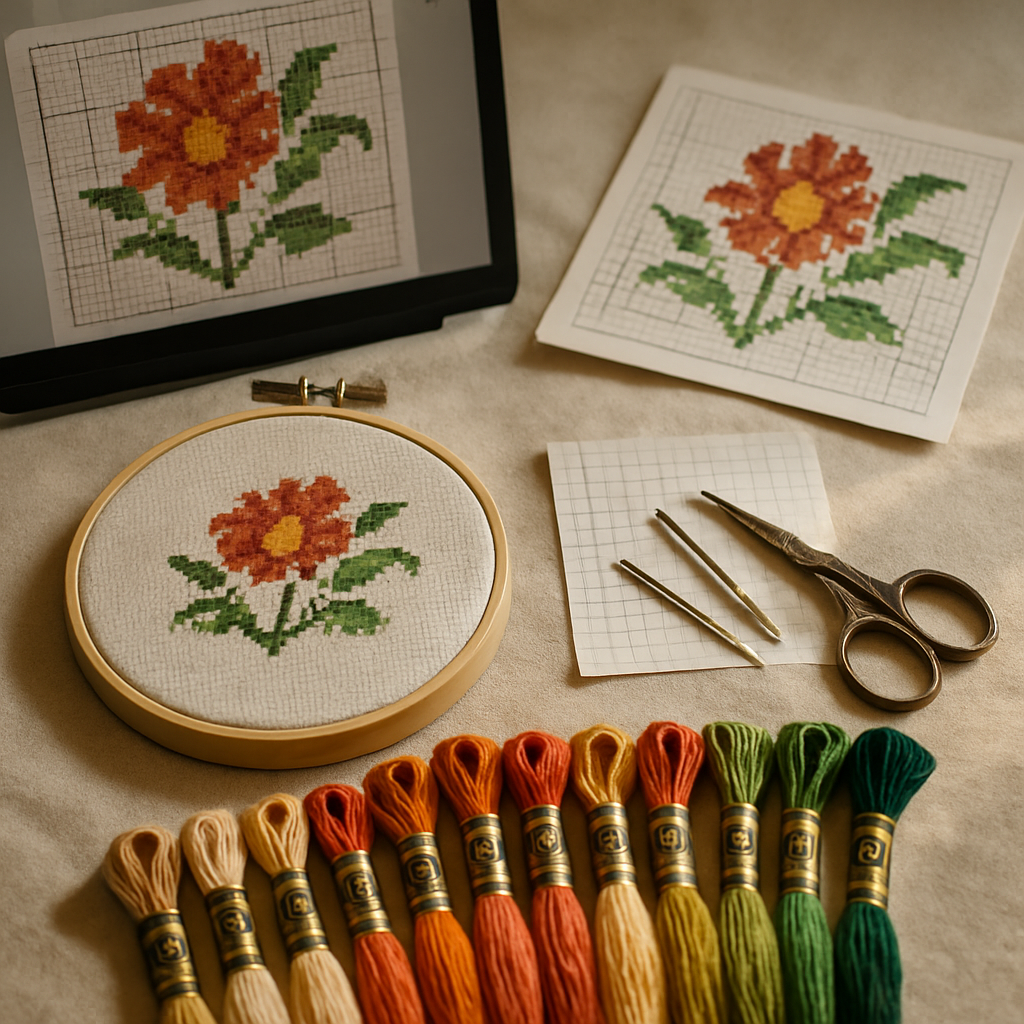
If you've shopped for cross-stitch tools, you've seen both words used as if they're the same thing: "pattern maker," "pattern generator." They're not. They describe two genuinely different kinds of tool, built for two different jobs — and picking the wrong one is how people end up frustrated, either staring at a chart they can't fix or spending hours doing by hand what a converter would have done in seconds.
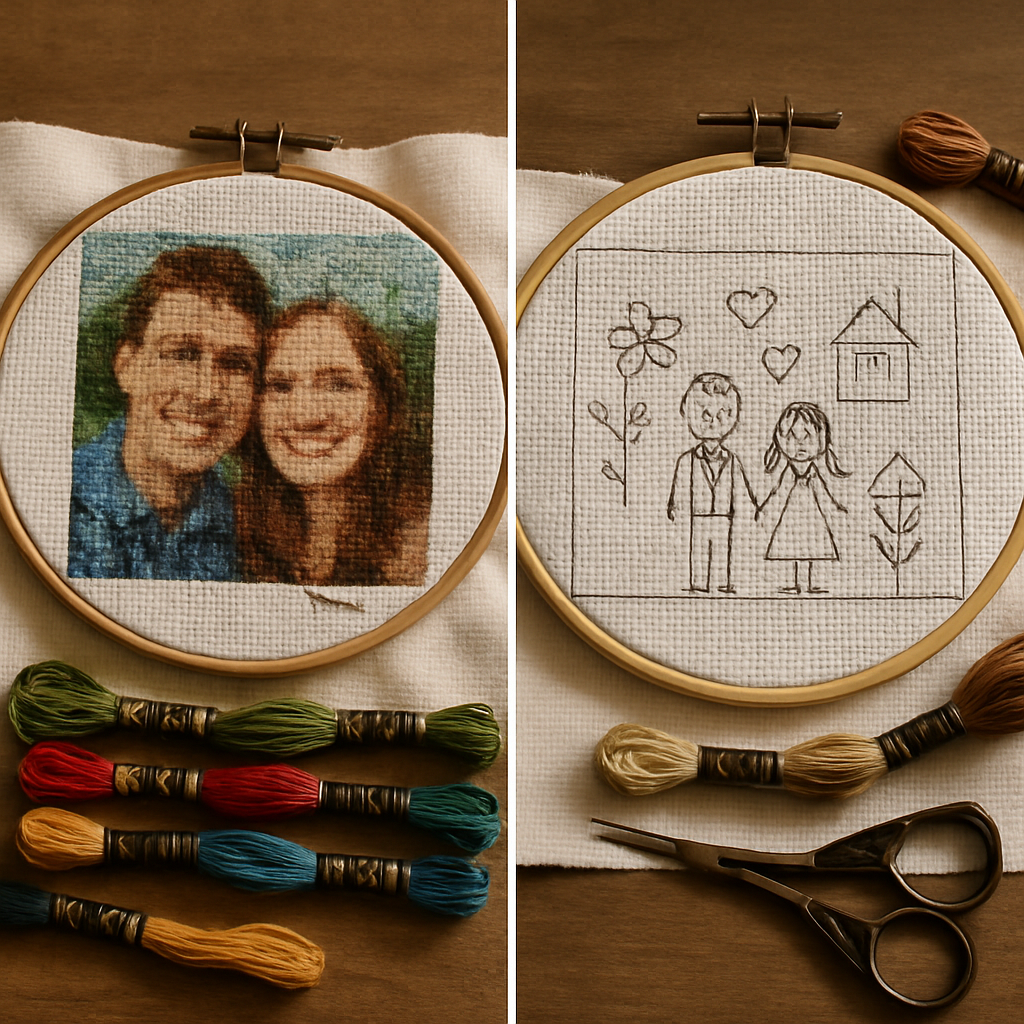
Here's the clear version: a generator turns a photo into a chart automatically. A maker is a design tool you use to create or edit a chart by hand. This guide explains exactly how they differ, which one your project actually needs, and why the smartest move is usually a tool that does both.
Pattern generator: automatic, photo-in / chart-out
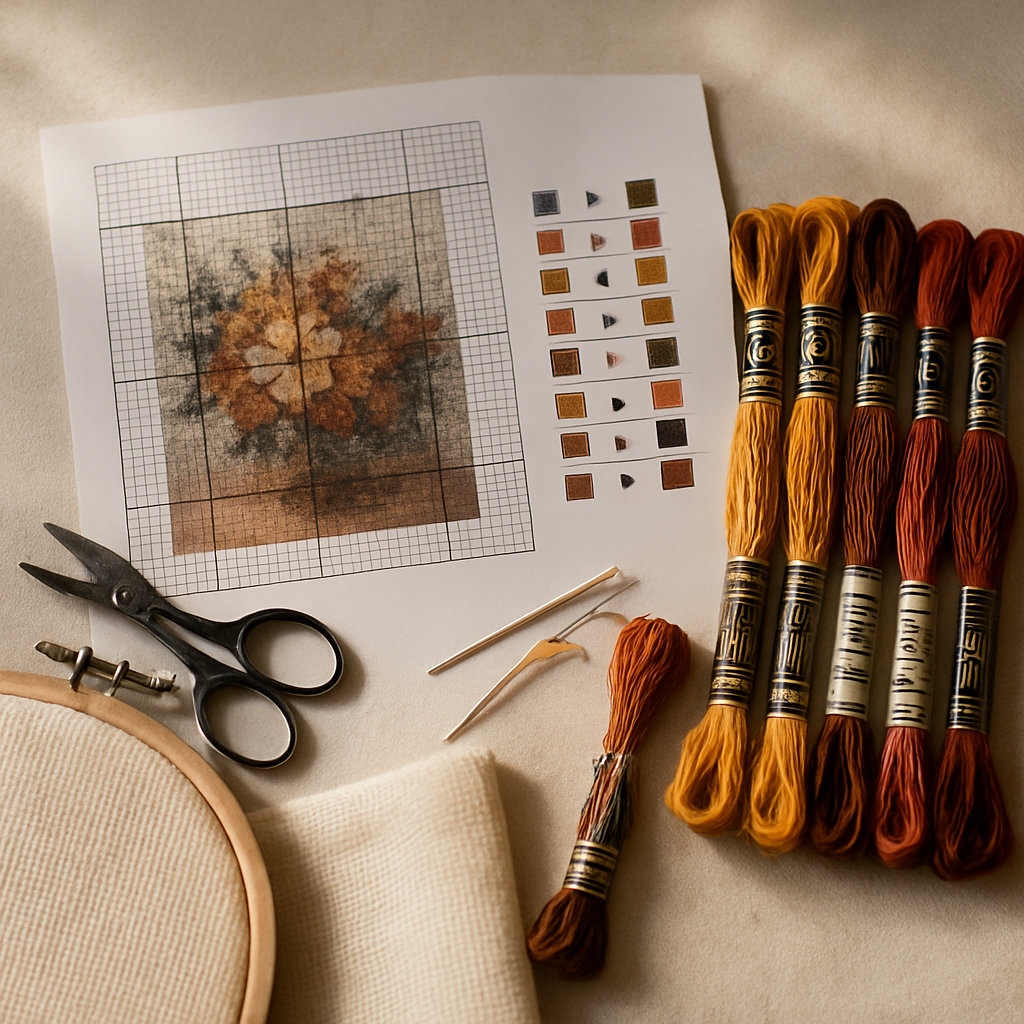 A pattern generator (sometimes "photo-to-pattern converter") takes an image you give it and automatically produces a cross-stitch chart. You upload a photo, set a few options, and it hands back a chart with colors mapped to floss and symbols assigned.
- What it's great at: speed and ease. Seconds of work, no design skill required. Perfect for turning a photo of your dog, your kid, or a landscape into a stitchable chart.
- Where it struggles: control. A basic generator gives you whatever it decides — which often means too many colors, blown-out faces, and confetti in busy areas. You take the output as-is.
Examples range from one-shot web converters to the photo-to-pattern features built into larger platforms. The quality gap between a careless generator and a smart one is enormous, which is the whole reason free patterns are so hit-or-miss.
Pattern maker: manual, full creative control
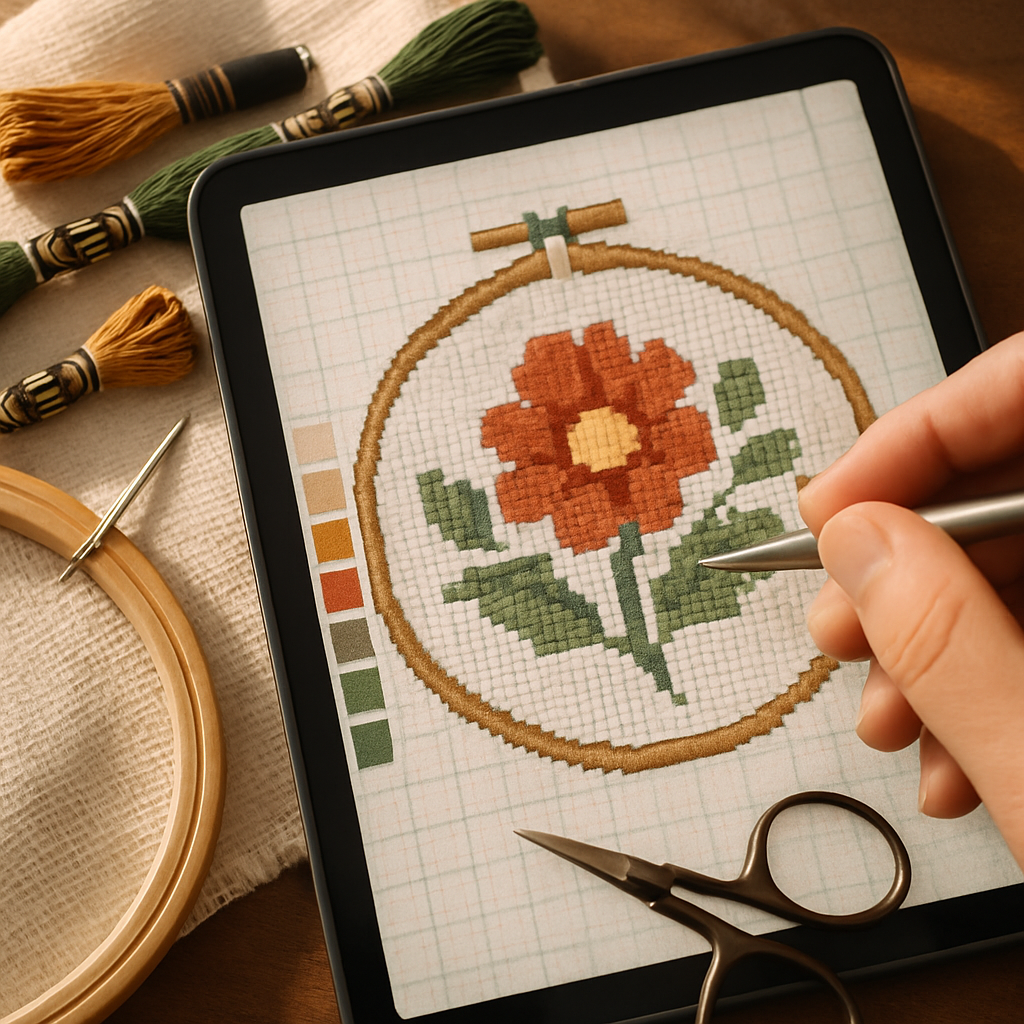 A pattern maker (or "pattern designer/editor") is a tool for building and editing charts by hand. You place stitches, draw shapes, choose every color, add lettering, and tweak the design stitch by stitch. It's the cross-stitch equivalent of a drawing program.
- What it's great at: total control. Every stitch is your decision. Ideal for original designs, lettering, borders, samplers, logos, and fixing or customizing an existing chart.
- Where it struggles: speed and learning curve. Building a detailed design by hand takes time and some skill. You wouldn't hand-place ten thousand stitches to render a photo when a generator could do it instantly.
Classic examples are desktop programs like PCStitch and browser designers like Stitch Fiddle.
Side by side
| Pattern generator | Pattern maker | |
|---|---|---|
| Input | A photo or image | Your own drawing/decisions |
| Output | A chart, automatically | A chart, built by hand |
| Speed | Seconds | Minutes to hours |
| Control | Limited (take what it gives) | Total (every stitch) |
| Skill needed | None | Some design sense |
| Best for | Photos, portraits, quick conversions | Original designs, lettering, borders, edits |
| Weak spot | Confetti, too many colors, no fine control | Slow; not for rendering photos |
So which one do you need?
It comes down to where your design is coming from:
- Starting from a photo? You want a generator — but a good one that controls color count and preserves the detail that matters, or you'll spend your evenings stitching confetti.
- Designing something original — lettering, a family tree, a border, a logo, a sampler? You want a maker.
- Want to fix or customize an existing chart — recolor it, add a name, remove confetti? You want a maker (specifically, an editor).
- Doing more than one of the above? You want both — and that's the real insight.
The plot twist: you usually want both
Here's what the maker-vs-generator framing misses. The best cross-stitch workflow isn't either/or — it's both, in sequence:
- Generate a base chart from your photo in seconds.
- Make it perfect by hand — clean up a confetti patch, swap a muddy color, add a name or a border, simplify a background.
A generator gets you 90% of the way instantly; a maker lets you fix the last 10% that turns a decent auto-chart into a yours-quality one. Tools that only generate leave you stuck with their output. Tools that only make leave you hand-building everything from scratch. The sweet spot is a tool that does both, so the handoff between them is seamless instead of an export-import headache between two programs (a headache we cover in our format conversion guide).
StitchThis is both — and then some
This is exactly where StitchThis is built differently. Most tools force the maker-vs-generator choice on you. StitchThis is a full generator and a full maker and the workshop around both — one browser-based platform, nothing to install. Here's the whole toolkit.
The generator side: photo (or text) to chart
- Photo-to-pattern with real control. Upload a photo and get a chart, with a Quality setting that runs from Simplified (fewest threads, bold blocks) through Balanced and Detailed to Full Color (maximum threads, photorealistic) — so you decide how detailed or minimal the result is, instead of taking whatever a basic converter spits out.
- StitchSense. It's designed to preserve the details that make a subject recognizable while reducing the confetti-heavy areas that make traditional conversion frustrating — so your auto-generated starting point is far cleaner than a basic converter's. The pattern is charted faithfully from your photo; AI only refines the source image, never the stitches.
- Built for the fabric you'll use. Choose your Aida count (from 7 all the way to 28), your finished shape (rectangle, circle, oval, and more), and your floss brand across DMC, Anchor, Cosmo, Gamma, Madeira, and Metro — so the chart and legend match the thread you actually own.
- No photo? Describe it. A Generate with AI tool lets you type what you want — "a sleepy fox in autumn leaves" — and AI creates a source image, which then becomes the source for your pattern, charted faithfully like any photo. (See the full photo workflow.)
The maker side: design and edit by hand
- A real freehand designer. Not a toy — pencil, brush, spray, straight-line, rectangle and ellipse tools, flood fill, eraser, color dropper, and select/lasso with copy-paste, all with undo/redo. Draw original designs directly; an Apple Pencil or mouse both work.
- Lettering. A text tool with a library of fonts lets you add names, dates, and quotes — resize, rotate, and color each one — then it charts cleanly into stitches. Perfect for samplers, family trees, and personalized gifts.
- A stamp/sticker library. Drop in ready-made motifs — borders, hearts, flowers, and more — that snap to the grid. You can even upload and publish your own, building a reusable kit of design elements.
- Backstitch and fractional stitches for outlines and fine detail, so hand-designed work looks professionally charted.
- An editor for any chart. Every pattern — whether you generated it, imported it, or drew it — opens in an editor where you can fill a region, change all of one color at once, paint individual stitches, or copy formatting across the chart. This is how you do the "last 10%": clean up a confetti patch, recolor a muddy shade, or add a border to a finished design.
The advanced source-image tools (the secret weapon)
Before a photo ever becomes a pattern, you can perfect it — AI works on the source image, then the chart is rendered faithfully from it:
- Upscale & Enhance a blurry or low-res photo so the detail survives into the stitching.
- Remove or Replace Background so the chart spends its detail on your subject, not the clutter.
- Combine Subjects or Merge Images to build the photo you wish you had from two shots.
- Stylize a photo (painterly, bold icon, cartoon) for a particular look, or Remix an existing pattern into new colors and moods.
The workshop around it
- A built-in stitch tracker — tap each stitch as you complete it, progress saved between sessions, so the tool you made the pattern in is also the one you stitch from.
- A floss stash tracker that the generator can match against — bias a pattern toward the thread you already own, and see exactly which colors you'd need to buy.
- Pattern import (bring in existing pattern PDFs) and clean PDF export when you're done.
- FORGE batch generation for sellers — produce dozens of pattern variations in one run, automatically scored so the keeper rises to the top.
- A community forum to share, ask, and get feedback.
And the handoff is seamless because it's all one tool. Generate from a photo, switch straight to the editor to perfect it, add lettering, track your stitching — no exporting, no importing, no second program, no second subscription. The maker-vs-generator question simply stops being a choice you have to make.
Get a generator, a maker, and a workshop in one — free You can generate a pattern from a photo, design one by hand, edit any chart, and stitch from the built-in tracker on StitchThis free One tool for the whole craft. Try StitchThis free →
A note for sellers
If you're designing patterns to sell, the maker-vs-generator distinction matters even more. You'll generate base charts from photos and refine them by hand for quality — and at volume, you'll want batch tools that generate many variations at once. (StitchThis's FORGE does exactly that; our forthcoming pricing guide covers the economics.). The point stands: professionals use both modes constantly, which is why a combined platform beats juggling separate tools.
Frequently asked questions
What's the difference between a cross-stitch pattern maker and a generator? A generator automatically turns a photo into a chart — fast, hands-off, limited control. A maker is a design tool you use to create or edit a chart by hand — slower, but total control. Generators are for converting photos; makers are for original designs and edits.
Which is better, a pattern maker or a generator? Neither is universally better — they do different jobs. Use a generator to convert a photo, a maker to design or edit by hand. For most people the best answer is a tool that does both, so you can generate a base from a photo and then perfect it by hand.
Can a pattern generator make good patterns? A good generator can, especially one that controls color count and preserves important detail while reducing confetti. A careless generator produces charts with too many colors and confetti-heavy backgrounds. The quality difference between generators is large.
Do I need design skills to use a pattern generator? No — that's the point of a generator. You upload a photo and it produces the chart. Design skills only come into play if you switch to a maker to customize or build a design by hand.
Can I edit a pattern I generated from a photo? Only if your tool includes maker/editor features. A pure generator leaves you with its output. StitchThis lets you edit a generated chart directly — fill regions, replace colors, fix stray stitches — and add lettering or borders.
Is StitchThis a maker or a generator? Both, fully. As a generator it converts photos (or even text descriptions) into charts with StitchSense detail control. As a maker it gives you a full freehand designer — brush, shapes, a text tool with fonts, a stamp library, backstitch — plus an editor for any chart. Around both sit advanced source-image tools (background removal, enhance, merge), a stitch tracker, a floss stash tracker, pattern import, FORGE batch generation for sellers, and clean PDF export — one browser-based platform instead of several separate tools.
The short version
A generator converts a photo into a chart automatically; a maker lets you design and edit a chart by hand. Choose a generator for photos, a maker for original designs and edits — and recognize that most real projects want both, because the magic is generating a clean base and then making it exactly right.
Rather than buying one tool for each, you can do both on StitchThis free — generate from a photo, design from scratch, edit any chart, and stitch from the built-in tracker. From pattern creation through floss tracking to in-browser viewing and editing — plus a community of stitchers around it — StitchThis is the whole pipeline in one place. Try StitchThis free →
Ready to turn your photo into a cross-stitch pattern?
Try StitchThis freeTwo patterns per month. No card required.