Como Criar um Gráfico de Ponto Cruz a Partir de uma Ilustração
Transforme um desenho ou ilustração digital em um gráfico de ponto cruz fiel. Por que arte converte de forma diferente de fotos, como domar o confete nas bordas e quais direitos verificar antes.
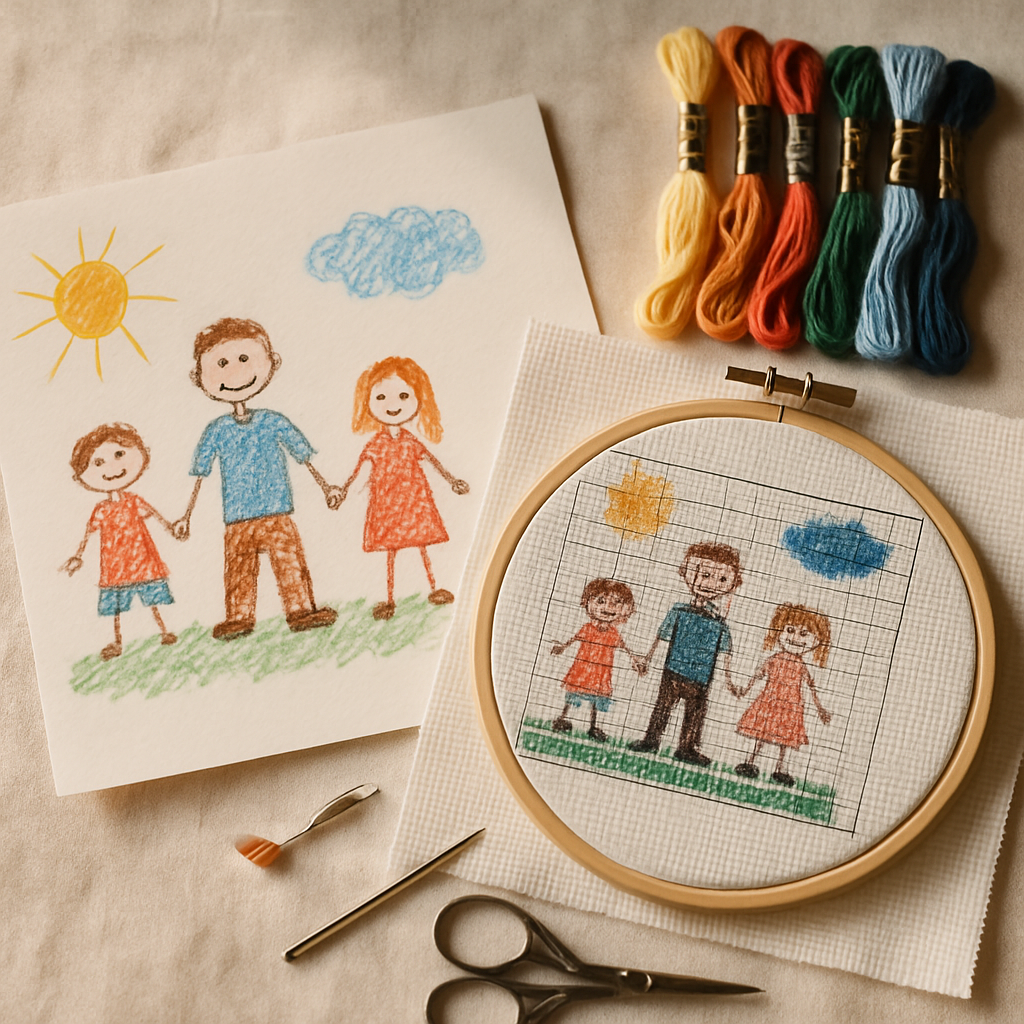
As fotos roubam toda a atenção na conversa de "transformar em gráfico", mas as ilustrações são, discretamente, a melhor matéria-prima — e uma das mais significativas. O desenho a giz de cera de uma criança de quatro anos retratando a família. A ilustração digital que você encomendou para o seu casamento. Sua própria arte parada num caderno de esboços. Tudo isso converte lindamente para ponto cruz, e o resultado tem um clima diferente do de uma foto: mais marcante, mais gráfico, inconfundivelmente desenhado.
Ilustrações também se comportam de forma diferente das fotografias quando você as transforma em gráfico, de maneiras que jogam a seu favor se você souber o que esperar — e te derrubam se não souber. Este guia cobre o que faz uma arte converter bem, a pegadinha técnica sobre a qual ninguém te avisa, a questão de direitos que você precisa resolver antes, e o caminho mais rápido para sair de um desenho e chegar a um gráfico costurável. Você pode experimentar o StitchThis grátis e acompanhar com uma arte sua.
Antes de tudo, uma palavrinha rápida sobre direitos
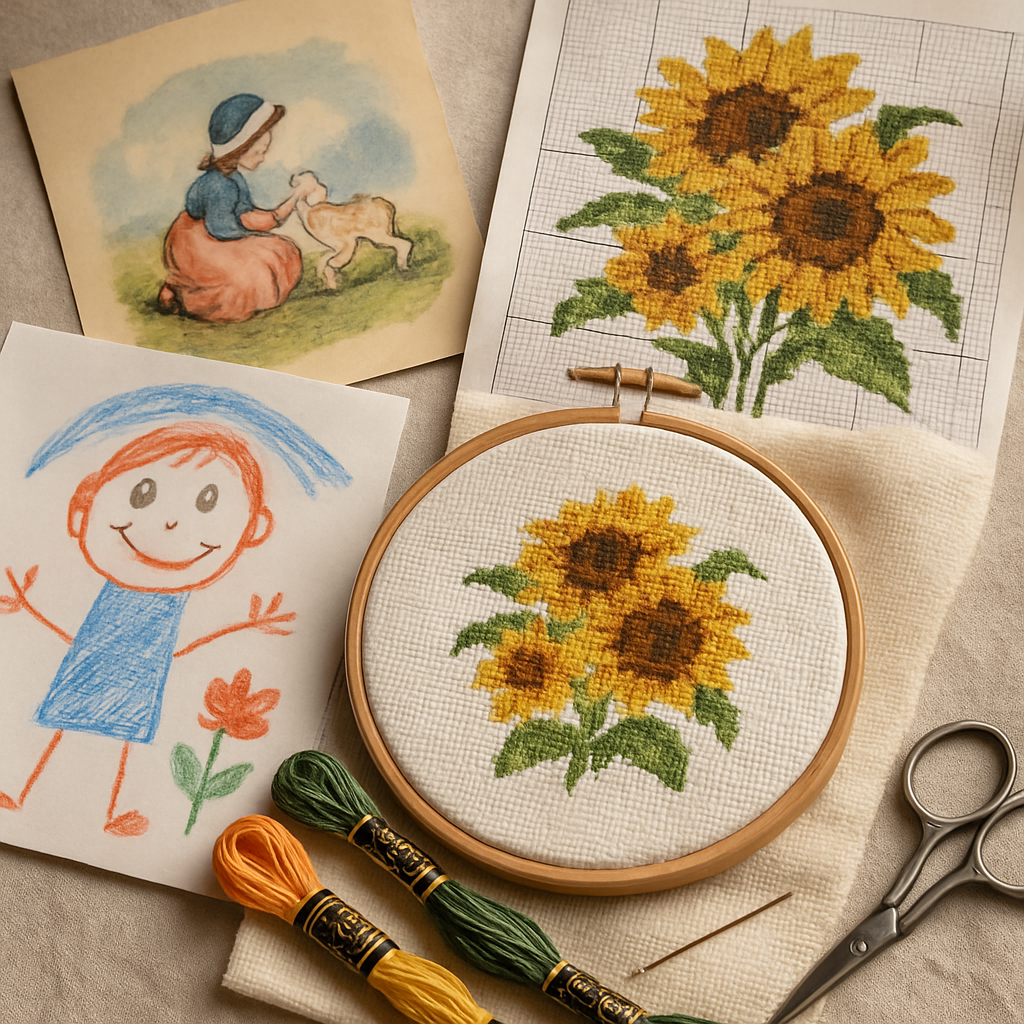 Antes de qualquer coisa: só converta arte que você tem o direito de usar. Seus próprios desenhos, a arte do seu filho, uma peça que você encomendou com os direitos incluídos ou trabalhos genuinamente em domínio público — tudo isso vale. Uma ilustração de livro, um personagem de uma série, uma estampa de algum artista que você achou online ou clip art com termos restritivos não valem, por mais original que seja a sua transformação em gráfico. Fazer um gráfico não transforma a arte de outra pessoa em sua.
Se você está fazendo gráfico para vender, isso pesa ainda mais — nosso guia sobre marca d'água e licenciamento de gráficos cobre o lado dos direitos da imagem fonte. Trabalhar com a sua própria arte resolve a questão de uma vez.
Por que ilustrações convertem de forma diferente das fotos
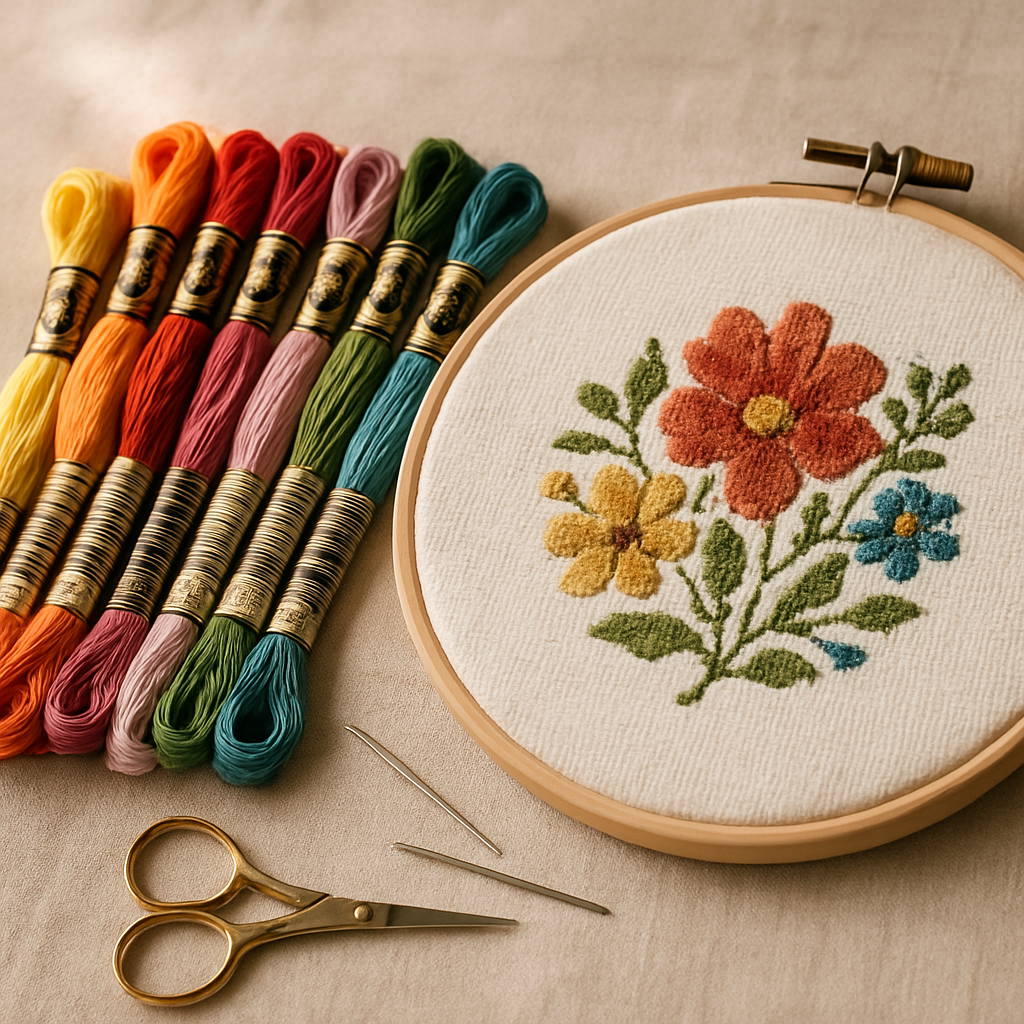 Uma fotografia é um caos de gradientes sutis — milhares de cores levemente diferentes se misturando umas nas outras, que é exatamente o que produz confete. Uma ilustração geralmente é o oposto: cores mais chapadas, formas mais limpas, linhas deliberadas. Isso te dá duas grandes vantagens e uma armadilha.
As vantagens:
- Áreas de cor chapada viram gráfico de forma limpa. Um bloco sólido de cor vira um bloco sólido de pontos — fácil de seguir, rápido de bordar, pouco confete.
- Formas marcantes funcionam bem na resolução de pontos. As ilustrações já são simplificadas, então sobrevivem à tradução para a grade muito melhor do que uma foto cheia de detalhes.
A armadilha — bordas com anti-aliasing: Ilustrações digitais têm bordas suavizadas e mescladas (anti-aliasing) onde uma cor encontra a outra. Dê um zoom e aquela linha que parecia nítida é, na verdade, um gradiente de vários pixels de largura. Converta sem cuidado e cada borda limpa cria uma franja de pontos isolados em cores intermediárias — confete, justamente no lugar onde você não esperava. Toda a arte de transformar uma ilustração em gráfico está em manter as áreas chapadas chapadas, enquanto se limpa essas bordas.
O que faz uma ilustração virar um bom gráfico
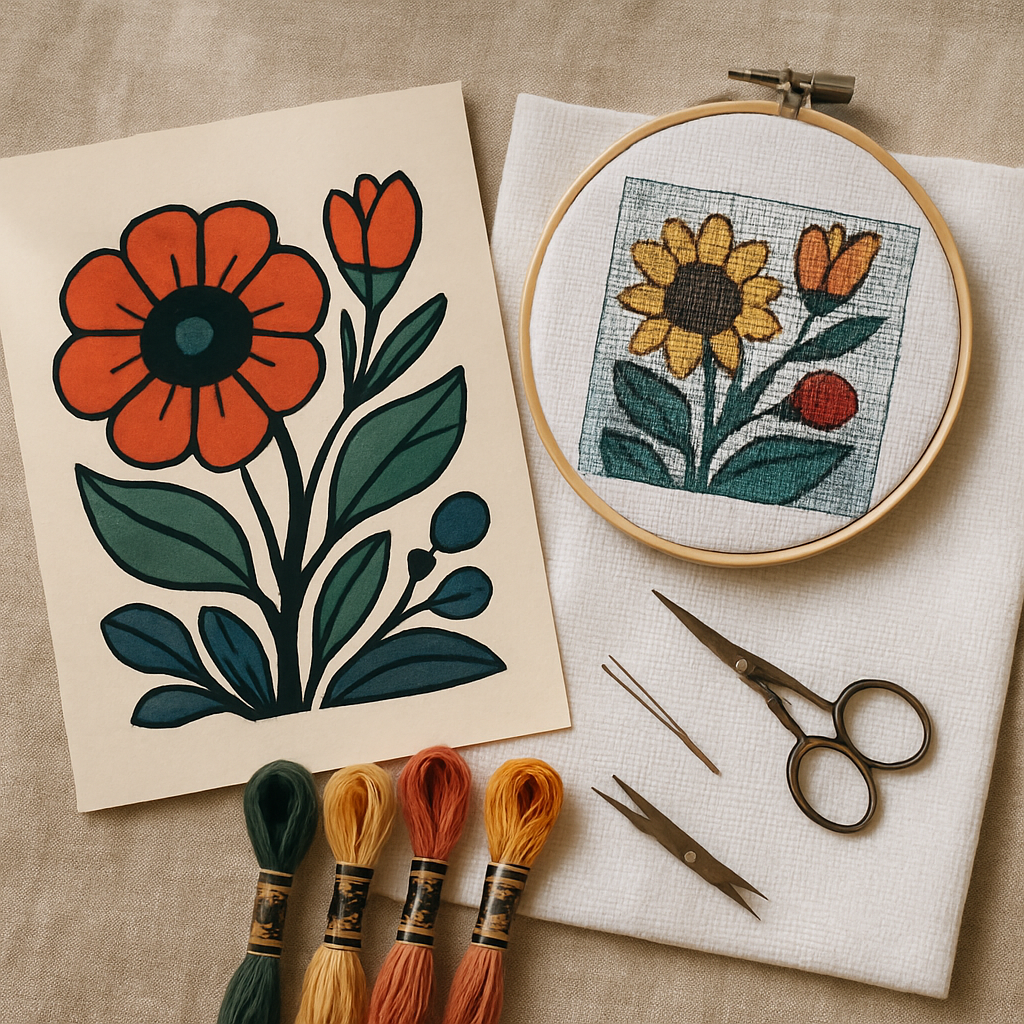 Nem toda arte é igualmente costurável. As melhores candidatas compartilham algumas características:
- Uma paleta de cores limitada e distinta. Cores marcantes e separáveis ganham de cem tons sutis.
- Formas e contornos claros. Formas bem definidas se sustentam; detalhes finos e esfumaçados se perdem na grade.
- Nível de detalhe coerente com o tamanho. Uma ilustração simples e gráfica num número razoável de pontos fica limpa; uma cheia de detalhes precisa ser bordada grande para preservar o que tem.
Um estilo de livro infantil bem colorido, uma ilustração vetorial chapada, um logotipo forte ou um desenho de criança são quase ideais. Uma aquarela delicada, com gradientes suaves, é o caso mais difícil — comportamento parecido com o de uma foto.
O fluxo de trabalho do StitchThis para ilustrações
Aqui está o caminho da arte até o gráfico costurável, e onde cada ferramenta entra em cena.
1. Faça upload e converta
Solte sua ilustração no StitchThis e o mecanismo de imagem para gráfico transforma tudo em um gráfico real, contado — símbolos mapeados para cores específicas de linha. Como as ilustrações começam mais limpas que as fotos, você normalmente já chega quase pronto de primeira.
2. Simplifique com as predefinições de qualidade
Para arte chapada, prefira as predefinições de qualidade Simplified ou Balanced em vez de Full Color. Isso consolida aquelas cores quase idênticas das bordas dentro da sua paleta principal, que é a jogada mais eficaz contra o confete causado pelo anti-aliasing. O Full Color captura fielmente cada pixel mesclado — exatamente o que você não quer de uma ilustração.
3. Use as ferramentas de estilo e fundo onde elas ajudam
As ferramentas de imagem do StitchThis atuam sobre a sua ilustração de origem antes do gráfico ser gerado (e o gráfico é gerado fielmente a partir dela — nunca a partir de uma renderização falsa "pronta"). Algumas que combinam com arte:
- Simplificar ou remover fundo limpa um fundo bagunçado ou meio creme, deixando a figura sozinha com bordas nítidas.
- As opções de estilo (pictórico, ícone, cartoon) podem puxar uma ilustração mais cheia ou semi-realista em direção a um visual mais marcante e chapado, que vira gráfico de forma mais limpa. No caso de um desenho de criança ou de um vetor já chapado, você costuma pular essa etapa — a arte já está fazendo o trabalho por você.
4. Ajuste as bordas no editor
É aqui que uma ilustração sai do "bom" para o "impecável". O visualizador de gráficos do StitchThis funciona também como editor, então você pode arrumar as bordas na mão: use o Draw para repintar um ponto solto, o Fill para preencher uma região inteira com uma cor, e o Change All para substituir todas as ocorrências de uma cor intermediária indesejada de uma vez só. Cinco minutos aqui apagam a franja do anti-aliasing e te entregam as linhas limpas e gráficas que fazem a ilustração brilhar. (Se o confete estiver te batendo de frente, nosso guia de sobrevivência a confetes vai mais fundo.)
5. Combine a paleta com linhas reais
Ilustrações costumam ter cores específicas e intencionais. Gere o gráfico contra paletas multimarca — DMC, Anchor, Cosmo, Gamma, Madeira, Metro — para combinar com linha de verdade, que dá pra comprar, e mantenha a quantidade de cores enxuta para que a peça continue marcante e rápida de bordar. (Mais sobre escolher cores bem no nosso futuro guia de seleção de paleta de cores.)
Por que o StitchThis combina com trabalho de ilustração: o mecanismo de imagem para gráfico converte a arte, as predefinições de qualidade aplainam o confete de anti-aliasing, as ferramentas de estilo e fundo deixam a fonte mais marcante e limpa, o editor dentro do visualizador afia cada borda na mão, e as paletas multimarca combinam com linha de verdade — e no fim sai um PDF limpo para você bordar. Comece grátis →
Construa do zero no editor de desenho livre
Às vezes a melhor "conversão" é redesenhar a ilustração como um gráfico — especialmente para line art simples ou logotipos, onde você quer controle total. O editor de desenho livre do StitchThis te permite construir um gráfico numa grade em branco: posicionar e colorir pontos diretamente, soltar formas e adicionar letras com a ferramenta de Texto (uma grande variedade de fontes, redimensionáveis e rotacionáveis). É a diferença entre converter automaticamente uma peça complexa e construir uma peça limpa à mão. Especificamente para arte estilo logotipo, nosso futuro guia de gráficos de logotipo vai mais a fundo, e você pode ver o desenho livre em ação no nosso guia de gráficos de árvore genealógica.
A lembrança feita a partir do desenho de uma criança
De todos os projetos de ilustração, este é o que faz as pessoas se emocionarem. O desenho da família feito por uma criança de quatro anos, bordado e emoldurado, é uma lembrança que ganha de qualquer foto — ele captura como ela enxergava o mundo naquela idade, com proporções tortas e tudo. Algumas dicas:
- Mantenha fiel, tortices incluídas. O charme está na imperfeição. Não "conserte" o desenho — passe para o gráfico como ele é.
- Giz de cera e caneta marcadora bem fortes funcionam melhor. Cor forte e chapada converte de forma limpa; lápis fraquinho é mais difícil.
- Borde em um tamanho confortável. O desenho de uma criança não precisa de detalhe fino, então um tecido de contagem mais baixa mantém o projeto rápido e gostoso — veja nosso guia Aida 14 vs 16 vs 18. (Para mais projetos amigáveis para crianças — inclusive deixar a criança projetar o próprio — veja nosso guia de gráficos de ponto cruz para crianças.)
Perguntas frequentes
Dá para transformar um desenho em gráfico de ponto cruz? Sim, e desenhos costumam converter melhor do que fotos porque suas cores chapadas e formas marcantes viram gráfico de forma limpa. Faça upload da arte, simplifique a paleta e ajuste as bordas para um resultado nítido.
Por que minha ilustração tem confete mesmo sendo chapada? Anti-aliasing — as bordas suavizadas e mescladas onde as cores se encontram em uma imagem digital. Use uma predefinição de qualidade Simplified/Balanced para consolidar essas cores de borda e depois arrume pontos perdidos com as ferramentas Fill e Change All do editor.
Posso fazer um gráfico de ponto cruz a partir do desenho do meu filho? Com certeza — é um dos projetos de lembrança mais queridos. Passe fielmente para o gráfico (mantenha as tortices), use desenho a giz de cera ou caneta marcadora bem forte para o resultado mais limpo, e borde em um tamanho confortável.
Posso vender gráficos feitos a partir de ilustrações? Só se você for titular dos direitos ou tiver licença para usar a arte de origem. Um gráfico feito a partir da ilustração de outra pessoa geralmente não pode ser vendido, mesmo que a sua transformação seja original. Trabalhar com sua própria arte evita o problema.
É melhor converter ou redesenhar uma ilustração? Para arte complexa, converta e depois limpe. Para line art simples ou logotipos, redesenhar do zero no editor de desenho livre te dá o resultado mais limpo e controlado.
Transforme a arte em linha
Uma ilustração já fez o trabalho difícil de simplificar o mundo em formas marcantes e cores claras — que é exatamente o que o ponto cruz quer. Converta, aplaine o confete das bordas, afie as linhas, combine a linha, e você tem um gráfico com um impacto gráfico que uma foto não alcança. Seja a sua própria arte ou um desenho feito por uma mãozinha que você ama, ele merece ser bordado.
Experimente o StitchThis grátis e transforme sua ilustração em um gráfico hoje mesmo.
Como o StitchThis converte sua foto em um gráfico fiel
A conversão de foto para gráfico é justamente onde a maioria das ferramentas tropeça — elas tratam cada pixel da mesma forma, espalham o detalhe uniformemente pela imagem, e o resultado é um gráfico que parece certo em miniatura e irreconhecível no tecido. O StitchThis foi construído em torno do princípio oposto: o StitchSense preserva detalhe onde o olho lê expressão (rostos, olhos, assuntos em foco) e simplifica as áreas onde o olho não repara. O confete cai drasticamente, o personagem central continua reconhecível, e o gráfico respeita o que a costura consegue de fato renderizar na contagem do seu tecido.
O mesmo gerador te entrega o resto do projeto de uma vez só. A legenda é renderizada em qualquer uma de seis marcas de linha — DMC, Anchor, Cosmo, Gamma, Madeira, Metro — para que o gráfico chegue na marca que você realmente tem. O controle de estoque de linhas pode ser importado por CSV a partir de uma planilha existente ou fotografando seu organizador de meadas, e o gráfico então filtra a lista de compras contra o que está na sua gaveta de linhas. O visualizador no navegador funciona também como editor de gráficos — pincel, preenchimento, substituição com Change All, ferramentas de meio ponto e ponto atrás — para você ajustar células ao redor dos olhos ou de outras áreas centrais antes de cravar um único ponto. Assinantes do plano Studio ainda ganham a geração em lote FORGE para várias variações a partir da mesma imagem de origem. Tudo é exportado para um PDF limpo quando você termina. Todo o fluxo de trabalho vive dentro do StitchThis — monte o gráfico, gerencie sua coleção de linhas, visualize, acompanhe e edite o gráfico no navegador, e borde ao lado de uma comunidade de outras pessoas que bordam ponto cruz.
Experimente o StitchThis grátis — faça upload de uma foto, escolha uma marca, veja seu gráfico em poucos minutos.
Leituras relacionadas no StitchThis:
Ready to turn your photo into a cross-stitch pattern?
Try StitchThis freeTwo patterns per month. No card required.